Product feed errors are a common but often overlooked cause of poor performance in Meta Ads campaigns. These errors can block your products from being approved, cause incorrect product details to show, or limit your ads’ reach—all of which drag down sales and waste ad spend. Understanding how these errors impact your campaigns, identifying the most frequent issues, and knowing how to fix them are key steps to restoring your ads’ effectiveness. Once your feed is accurate and complete, your products will show correctly to the right audience, boosting your campaign results.
Why am I seeing poor performance despite good ad creatives?
Great creatives alone can’t guarantee success if your product feed has errors. Your feed supplies Meta with essential details like titles, prices, availability, and images. If this information is missing, incorrect, or out of date, Meta’s systems may limit your ads or disapprove products. For example, if prices in your feed don’t match those on your website, Meta might reject your products or show the ads less often. Even the best creative can’t perform well when the underlying product data causes issues or confuses Meta’s algorithms. Often, poor campaign results trace back to feed quality rather than your ads themselves.
What exactly is a product feed in Meta Ads?
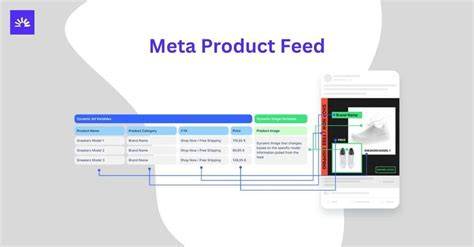
A product feed is a structured file—usually a spreadsheet or data feed—that lists all the products you want to advertise on Meta platforms. It includes fields like product ID, title, description, price, availability, image URL, and sometimes identifiers like GTIN or brand. Meta uses this feed to automatically create ads tailored to users likely to buy those products. For example, a shoe store’s feed lists all shoes with details, allowing Meta to show the right sneakers to the right audience without making separate ads for each product. This system enables dynamic and scalable catalog sales campaigns.
Which product feed errors most commonly cause issues?
Several errors often disrupt Meta Ads campaigns. Missing or incorrect GTINs (Global Trade Item Numbers) are common; these codes help Meta categorize products properly, and their absence can limit ad reach. Price mismatches between your feed and website or incorrect price formatting frequently lead to product disapprovals. Products disapproved due to policy violations or data mismatches—like incorrect availability status—also hurt your campaigns. Invalid URLs for images or product pages break ads and reduce user trust. Other frequent issues include missing required fields like titles or descriptions and unsupported characters causing parsing errors. These problems, though sometimes small individually, can add up to significant drops in ad delivery and performance.
How can I spot feed errors using Meta Commerce Manager?
Meta’s Commerce Manager includes diagnostics tools that highlight feed errors and warnings. To check, go to your catalog in Commerce Manager and select the "Diagnostics" tab. It lists errors that block products from being shown and warnings that might affect performance. You’ll see details about affected products and error types—such as missing GTINs, invalid URLs, or pricing mismatches. You can filter errors to focus on the most critical fixes. Regularly reviewing this diagnostics section helps you catch new feed issues early before they impact your ads.
What happens if product data is incomplete or outdated?
Incomplete or outdated product information can cause ads to be disapproved, preventing your products from appearing altogether. Even when ads run, inaccurate data reduces targeting effectiveness because Meta depends on precise product details to match ads with interested users. For example, showing a product as "in stock" when it’s actually sold out frustrates customers and harms user experience, lowering click-through rates and increasing negative feedback. Over time, this can damage your account’s reputation and ad delivery. Outdated pricing or availability can also trigger Meta’s review flags, reducing your ads’ reach or causing them to pause. Keeping your product data current and complete is essential for consistent, reliable campaign performance.
Why do disapproved products keep showing up in my campaigns?
Disapproved products may still appear temporarily in your campaigns due to delays in Meta’s system updates or because they’re linked to active ad sets that haven’t been paused or refreshed. Common reasons for disapproval include policy violations or data mismatches, such as a product marked "available" in your feed but not on your website. If you don’t quickly remove or fix these products, they can continue to run ads, wasting budget and confusing customers. Regularly auditing your catalog to remove or correct disapproved products keeps campaigns clean and effective.
How do mismatched currencies or price formatting mess up my ads?
Price and currency formatting errors are surprisingly common and can prevent ads from running smoothly. Meta expects prices to match your store’s currency and use a specific numeric format—usually a number with two decimals, like 19.99. Using commas instead of periods, including currency symbols where not allowed, or mixing currencies (for example, listing USD prices with EUR settings) can cause product disapprovals or feed rejections. This can stop your ads from running or show incorrect prices, confusing customers and damaging trust. Double-checking your feed to match Meta’s formatting and currency requirements is a simple but critical step.
What are the best ways to fix and prevent feed errors long-term?
Fixing feed errors once helps, but preventing them saves time and keeps campaigns stable. Use feed validation tools—Meta’s own or third-party apps—to scan your feed for errors before uploading. Automate feed updates when possible, syncing your ecommerce platform directly with Meta’s catalog to keep data fresh and reduce manual mistakes. Regularly check the Diagnostics tab in Commerce Manager to catch new issues early. Standardize your product data inputs, ensuring consistent GTINs, correct formatting, and complete fields. Also, stay updated on Meta’s feed requirements and policy changes, as these can introduce new errors suddenly. Building regular feed maintenance into your workflow is the best way to avoid future problems.
What should I do if my feed errors persist after fixes?
If errors continue after you’ve addressed obvious issues, consider contacting Meta support through Commerce Manager for personalized assistance. Some problems stem from subtle policy violations or platform glitches that diagnostics don’t clearly show. Third-party feed management tools may offer better validation, automated fixes, and clearer error reports than Meta’s native tools. In some cases, rebuilding your product feed from scratch or re-importing your catalog can resolve hidden conflicts. Persistent feed problems require patience and a systematic approach—keep detailed records of your fixes and their effects as you troubleshoot.
How can I test and measure feed improvements on my Meta Ads performance?
After fixing your feed, track key metrics like impressions, click-through rates, conversions, and return on ad spend (ROAS) before and after your updates. Running A/B tests—using two campaigns identical except for the feed version—can isolate the impact of feed quality on performance. Monitor the Diagnostics tab to see if errors decrease over time. Keep in mind that Meta may take a day or two to fully reprocess your catalog, so improvements might not appear immediately. Consistent monitoring and testing help you understand which fixes improve results and guide your ongoing optimizations.
Conclusion
Start by checking your product feed diagnostics in Meta Commerce Manager and fix the most critical errors first, like missing GTINs and pricing mismatches. Don’t get distracted by minor warnings until your main errors are resolved, since those cause the biggest problems. A clean, accurate, and up-to-date product feed is the foundation for your ads to perform well. Once your feed is healthy, you’ll see better ad delivery, more approved products, fewer disapprovals, and improved sales. Make feed maintenance a regular part of your workflow to avoid surprises that hurt your campaigns.
Frequently Asked Questions
How often should I update my product feed to avoid errors?
Ideally, update your product feed at least daily, especially if your inventory or pricing changes often. Frequent updates keep your data fresh, reduce mismatches, and help prevent disapprovals from outdated information.
Can missing GTINs really cause my ads to underperform?
Yes, GTINs help Meta categorize products correctly and improve ad targeting. Missing or incorrect GTINs can limit your products’ visibility and reduce your campaign’s reach, which hurts performance.
What’s the easiest way to fix formatting errors in my feed?
Using feed validation tools or automated feed management platforms quickly identifies and fixes formatting issues like incorrect price decimals, currency mismatches, or invalid characters before you upload your feed to Meta.
Why do some disapproved products still appear in my ads?
Disapproved products might still show temporarily due to system update delays or because they’re linked to active campaigns. Removing or fixing these products quickly helps avoid wasted ad spend and keeps your ads clear.
How can I tell if my feed fixes actually improved my Meta Ads?
Look for increases in impressions, clicks, and conversions after fixing your feed. Running A/B tests with different feed versions can also help you isolate the impact of those fixes on ad performance.