UTM parameters are tags added to the end of a URL that help you track where your website visitors come from and which marketing campaigns drive traffic. By adding these simple pieces of text to your links, you can see exactly which sources, channels, and campaigns are working best in your analytics tools. This makes it easier to understand your marketing performance and decide where to focus your time and budget.
What exactly are UTM parameters?
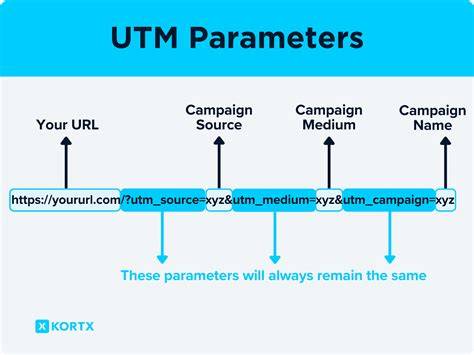
UTM parameters are short pieces of text added to the end of a URL that identify where visitors clicked a link before arriving at your site. Think of them as labels that provide context to your analytics software. For example, a plain URL like www.example.com becomes www.example.com?utm_source=facebook&utm_medium=social&utm_campaign=spring_sale when tagged. Each part after the question mark is a tag: "utm_source" tells you the website or platform sending traffic, "utm_medium" shows the marketing channel, and "utm_campaign" names the specific campaign. These tags don’t affect what visitors see on your site—they simply help track how people found you.
Why should I care about UTM parameters?
Without UTM parameters, your analytics tools often group all traffic together or guess where visitors came from, which can make it hard to tell which marketing efforts are effective. UTM tags give you clear data about which campaigns and channels bring visitors and conversions. If you run multiple campaigns at once, these tags let you compare their results fairly. This way, you can invest in the tactics that work and avoid spending time and money on those that don’t.
What does a typical UTM parameter look like?
A UTM-tagged URL includes several parameters starting with "utm_" followed by a keyword and value. The most common are utm_source, utm_medium, and utm_campaign. For example, utm_source=facebook shows traffic from Facebook, utm_medium=social means the channel is social media, and utm_campaign=spring_sale identifies the campaign. Some marketers also use utm_term to track paid search keywords or utm_content to distinguish different ads or links within the same campaign. For instance, a Twitter link promoting a summer sale might look like this: www.example.com?utm_source=twitter&utm_medium=social&utm_campaign=summer_discount. Each tag helps you break down your traffic data by source, channel, and campaign.
How do UTM parameters actually work behind the scenes?
When someone clicks a link with UTM parameters, their browser sends those tags along with the URL to your website. Your analytics tool, like Google Analytics, reads these tags and records the information. This lets you track not only that a visitor arrived but also where they came from and which campaign brought them. The data is stored and organized into reports that show which sources and campaigns drive the most visits, engagement, or conversions. UTM parameters don’t track individual users or their behavior beyond the initial source—they simply mark the visit's origin.
What are the most common mistakes people make with UTM parameters?
Common errors include inconsistent naming—like switching between “Facebook” and “facebook”—which splits your data into separate entries and makes analysis messy. Another issue is overwriting parameters when links get shared or shortened multiple times, which can erase tracking info. Using UTM tags on links within your own website can confuse your data by resetting the source, so avoid tagging internal links. Finally, not testing your tagged URLs before sharing can result in broken links or missing data.
How do I create UTM parameters step-by-step?
To create a URL with UTM parameters, start with your base link (e.g., www.example.com). Add a question mark (?) followed by your tags in this format: utm_source=value&utm_medium=value&utm_campaign=value. Separate each tag with an ampersand (&). For example, a LinkedIn link for a winter campaign might be www.example.com?utm_source=linkedin&utm_medium=social&utm_campaign=winter_launch. You can also use tools like Google’s Campaign URL Builder, which lets you fill in fields and generates the full tagged URL. Just remember to use consistent and clear names for your parameters to keep your data clean.
How do I see UTM data in Google Analytics?
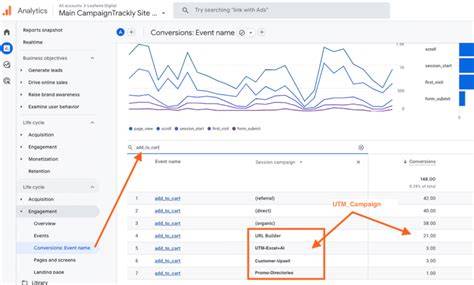
In Google Analytics, UTM data appears in the Acquisition reports. The "Campaigns" section shows traffic grouped by utm_campaign, while "Source/Medium" reports display combinations of utm_source and utm_medium. These reports reveal how many users came through each tagged link, how they interacted with your site, and if they converted. You can filter and compare these segments to evaluate your marketing efforts. If you don’t see your UTM data, check that your URLs are tagged correctly and that your analytics tracking code is properly installed on your site.
Can UTM parameters track everything about my visitors?
UTM parameters only identify where visitors came from and which campaign brought them to your site. They don’t track user behavior beyond that first visit or recognize repeat visits by the same person. For more detailed tracking—like following user actions over time or retargeting—you need tools like cookies and pixels. Cookies store information about users across sessions, and pixels collect data on behavior such as page views and conversions. UTM tags work well alongside these methods but can’t replace them.
What are best practices for naming my UTM parameters?
Consistency in naming is essential for clean, useful data. Use lowercase letters to avoid duplicates caused by capitalization differences. Choose simple, descriptive terms—like “facebook” instead of “FB” and “social” instead of “smm.” Avoid spaces; use underscores or dashes if needed. Create a naming convention document for your team so everyone uses the same terms. Be specific enough to be meaningful but not so detailed that your reports become cluttered. Consistent naming helps you compare campaigns and channels easily without sorting through messy or duplicated entries.
What should I do next once I start using UTM parameters?
After tagging your links, test them by clicking to ensure they lead to the correct page and appear in your analytics reports. Share your naming rules with your team to keep everyone on the same page. Make UTM tagging part of your campaign planning, so it becomes routine instead of an afterthought. Regularly review your UTM reports to identify trends and adjust your marketing strategies based on real data. This approach helps you make smarter decisions and improve results over time.
Conclusion
Start by tagging your key campaign links with clear, consistent UTM parameters. Keep your naming simple and uniform to avoid confusing your analytics data. Avoid over-tagging internal links, as that can muddy your results. When you open your analytics reports, you should immediately see which channels and campaigns brought visitors and conversions. Use these insights to refine your marketing efforts and steadily improve your results.
Frequently Asked Questions
Can I use UTM parameters on any link?
You can add UTM parameters to any external link you share to track its source, but avoid using them on internal links within your website since that can overwrite your original traffic source data.
Do UTM parameters affect the user experience?
No, UTM parameters appear in the URL but don’t change how the page looks or works for visitors. They only help track where traffic came from behind the scenes.
How long do UTM parameters track a visitor?
UTM parameters track the source for a visit only when the user clicks the tagged link. They don’t track visitors over time—that’s what cookies or pixels handle.
What happens if I misspell a UTM parameter?
Misspelled or inconsistent UTM tags create separate entries in your analytics, fragmenting your data and making it harder to accurately assess campaign performance.
Are there alternatives to UTM parameters for tracking campaigns?
Yes. Other methods like cookies, pixels, and server-side tracking can capture user behavior and conversions in more detail, but UTM parameters offer a simple, effective way to attribute traffic sources.