Creating a product feed for Google Shopping campaigns means putting together a file that lists all your products and their details in a format Google can read. This feed is essential because it’s how Google knows what you’re selling, how much it costs, and whether it’s available. Without a proper product feed, your Shopping ads won’t show up or could display wrong information that confuses customers. Don’t worry if you’ve never made one before—this guide will walk you through what a product feed is, how to format your data to meet Google’s rules, ways to create and upload your feed, common mistakes to avoid, and tips to keep your feed updated and performing well.
What exactly is a product feed and why do I need one?
A product feed is a file or spreadsheet that lists each product you want to advertise on Google Shopping, including details like product names, prices, images, availability, and more. Google uses this information to create your shopping ads and decide when to show them to shoppers. Having accurate, up-to-date data helps your ads appear correctly and attract buyers. If your feed is missing key details or contains errors, your ads might not run, or shoppers could see wrong prices or unavailable items, which can hurt your sales. Think of the feed as your product’s profile that Google reads before showing your ad—it must be clear and complete to work well.
What product information does Google require in a feed?
Google requires certain specific data fields for each product. These include the product title, description, price, availability status, link to the product page, and an image URL. For example, your product title should clearly describe the item, like "Men’s Blue Running Shoes" instead of just "Shoes." Prices must exactly match what is on your website, including the currency and any sales or discounts. Availability should be marked as "in stock," "out of stock," or "preorder" so shoppers know if they can buy the product now. Missing or incorrect details in these fields often cause your feed to be disapproved. For instance, if your feed says a product costs $30 but your website shows $25, Google will flag that mismatch. Providing clear, honest, and properly formatted details helps your ads run smoothly and builds trust with shoppers.
How do I choose the right format to create my product feed?
Choosing how to create your product feed depends on how comfortable you are with technology and how many products you sell. Google Sheets is a good starting point for beginners or if you have a small number of products since it’s easy to use and update without extra software. XML feeds are more technical but support more complex data and automation, which works well if you have a large inventory or developer help. Many e-commerce platforms like Shopify and WooCommerce offer apps or built-in features that generate and update feeds automatically based on your product listings. If you prefer manual control and have only a few products, Google Sheets is effective. For hundreds or thousands of items, automated feeds through your platform or XML uploads save time and reduce mistakes. No matter which method you pick, your feed has to follow Google’s formatting rules to be accepted.
What’s the easiest way to make a feed using Google Sheets?
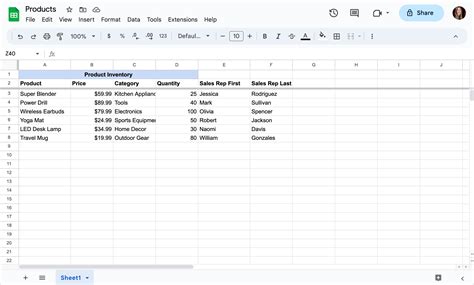
Google Sheets is a simple way to create your product feed without needing to write code. Start with a new sheet and add columns for required attributes like id, title, description, link, image_link, availability, price, and brand. Each row represents one product. For example, your title column might say "Classic Red Coffee Mug." In the price column, enter amounts like "19.99 USD"—including the currency code is key. Fill in the exact product page URL and image URL as they appear on your website. Google provides a product feed specification online that lists all required and optional columns to include. Once your sheet is ready, save it and make sure Google Merchant Center can access it. This method lets you update your feed anytime by simply editing the sheet, which is handy when you’re starting out or have a smaller product range.
Can my e-commerce platform create a product feed automatically?
Many e-commerce platforms can generate product feeds for Google Shopping automatically, saving you time and reducing manual work. Platforms like Shopify, WooCommerce, and BigCommerce usually have apps or built-in tools that create and update your feed from your product listings. To use these, you typically install the app or enable the feature, connect it to your Google Merchant Center account, and set your preferences, such as which products to include and how often to update. With this setup, your feed updates automatically whenever you add new products or change prices. Even with automatic feeds, it’s a good idea to check them regularly for errors or missing information that could affect your ads.
How do I upload and submit my feed to Google Merchant Center?
After your product feed is ready, you upload it to Google Merchant Center, where Google reads your product data to create Shopping ads. Sign in to your Merchant Center account or create one if you don’t have it yet. From the dashboard, go to the "Products" section and select "Feeds." Click the plus (+) button to add a new feed, then choose your target country and language. Next, select how you want to upload your feed: if you used Google Sheets, pick "Google Sheets" and provide the link; if you have an XML file, choose "Upload" and select your file; if you use your e-commerce platform’s integration, follow its instructions to connect. After submitting, Google processes your feed and shows any issues. Check the status and fix errors before your ads go live. This step is crucial—if your feed has problems, your ads won’t show or will be disapproved.
What are the most common feed errors and how do I fix them?
Feed errors usually come from missing required fields, wrong formatting, or mismatched data. Common mistakes include leaving out "price" or "availability," which Google needs to decide when to show your ads. Another frequent problem is having a price in your feed that doesn’t match your website, leading to disapproval. Image URLs must link directly to the image file (not to a webpage) and should be clear and high quality. To fix errors, double-check that every required column is complete, prices and availability match exactly what’s on your site, and all links work properly. Google Merchant Center provides detailed error messages pointing to the problem, so use those to guide your fixes. Checking your feed regularly helps catch issues early before they hurt your campaigns.
How do I keep my product feed updated without redoing everything?
Keeping your feed up-to-date is important because prices, stock, and product details change often. If you use Google Sheets, simply edit the data in your sheet, and Google Merchant Center will fetch the latest version according to the schedule you set. Automated feeds from e-commerce platforms update themselves whenever you change product info, so you don’t have to do anything extra. If you use manual XML feeds, you need to create and upload a new file every time your inventory changes. Setting a regular update schedule—daily or weekly depending on your business—helps ensure your ads always show the most current information, which prevents customer frustration and feed disapprovals.
How can I optimize my feed to improve my Shopping campaign results?
Optimizing your feed means making your product information clear and appealing to help your ads stand out and attract clicks. Use descriptive, keyword-rich product titles that include important details shoppers look for, like brand, color, and size. Write concise descriptions that highlight key features without repeating the title. Categorize your products correctly using Google’s product taxonomy so Google can match your ads to the right searches. Use high-quality images that clearly show your product. Avoid generic phrases like "great product" and focus on what makes your item unique. Regularly reviewing and improving your feed data can boost your ad relevance, click-through rates, and sales.
What should I do if my feed keeps getting disapproved?
If your feed keeps getting disapproved, start by carefully reading the error messages in Google Merchant Center; they usually explain what’s wrong. Common recurring issues include mismatched prices, missing required fields, or policy violations like selling prohibited products. Make sure your product pages match your feed exactly, especially prices and availability. If you use an automated feed, verify that the connection is working and updating as expected. Google’s help center and community forums can offer guidance if you’re stuck. If needed, contact Google support or a Merchant Center expert. Taking your time and paying attention to details will help you fix problems so your ads can run smoothly.
Conclusion
Begin by gathering accurate product details and deciding how you want to create your feed—Google Sheets is a good fit for most new advertisers, while platform integrations save time if you have many products. Focus on meeting Google’s requirements carefully, especially for prices and availability, then upload your feed to Merchant Center and watch for errors. Don’t worry if it’s not perfect at first; fixing issues as they come is normal. Once your feed is live, keep it updated regularly and refine your product titles and descriptions to improve results. A well-maintained product feed is the foundation of successful Shopping campaigns that bring the right customers and help your business grow.
Frequently Asked Questions
Can I use Excel instead of Google Sheets for my product feed?
Yes, you can create your feed in Excel and save it as a CSV file to upload to Google Merchant Center. But Google Sheets offers a direct connection that makes managing and updating your feed easier without re-uploading files.
How often should I update my product feed?
It depends on how often your inventory or prices change. For many small businesses, updating once a week is enough. If you change prices or stock frequently, updating daily keeps your ads accurate and prevents disapprovals.
What if my product doesn’t fit into any Google category?
Google provides a detailed product taxonomy to help categorize items. If your product is unusual, pick the closest matching category you can find. Correct categories help Google show your ads to the right shoppers.
Is it necessary to include all product attributes in the feed?
Only the required attributes must be included for your feed to be accepted. Optional attributes like color, size, or gender aren’t mandatory but can improve how well your ads perform by making them more relevant.
Can I run Shopping ads without a product feed?
No, a product feed is required for Google Shopping campaigns because it gives Google the product information needed to create and show your ads. Without a feed, you can’t run Shopping ads.