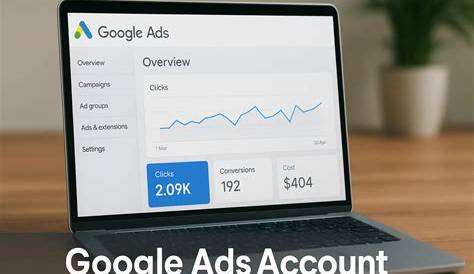
Creating a Google Ads account is your first step to advertising your small business online. You start by signing in with a Google account, entering your business details, setting up billing, choosing your campaign goals, and then launching your first campaign. Once set up, you’ll have access to a user-friendly dashboard where you can manage your ads and track how well they’re performing.
What do I need before creating a Google Ads account?
Before you create your Google Ads account, make sure you have a Google account ready. This can be a Gmail address or any Google login you use. If you don’t have one, creating a Google account is free and quick. Next, gather your business information, including your business name, website URL, and contact details—these help Google understand what you’re promoting. Finally, have your preferred payment method handy. Google accepts credit and debit cards, bank transfers in some regions, and other options depending on your location. Having these ready will make the setup process smoother and prevent delays when your ads start running.
How do I sign up for a Google Ads account?
Go to ads.google.com and click the “Start now” button. Sign in with your Google account. Google will prompt you to set up your first campaign, but you can skip that step to explore the account setup first if you prefer. You’ll then enter your business name and website. Google may ask about your advertising goals right away, but you can change these later. After that, you’ll enter billing information to activate your account. The interface guides you through each step with clear prompts. For example, if you own a local bakery, all you need are your website URL, business name, and a payment card to get started.
What billing information do I need to enter and why?
Billing details are essential because without them your ads won’t run. You’ll provide payment information such as a credit or debit card number, billing address, and sometimes tax details depending on your location. Google offers payment options like automatic payments, where you’re charged after your ads run, or manual payments, where you add funds in advance. Setting this up correctly from the start prevents interruptions. For instance, entering the wrong billing address or picking the wrong currency can cause your ads to pause or payments to fail. Take your time to double-check your billing info and keep it updated to ensure smooth ad delivery.
What campaign goals should I pick when setting up my account?
Choosing the right campaign goal helps Google optimize your ads effectively. Common goals include driving website visits, generating phone calls, increasing brand awareness, or encouraging visits to your physical store. For example, if you want more visitors to your website, select a goal focused on website traffic. If phone calls are more important, choose a goal centered on calls or leads. If you want to build general awareness, pick that goal accordingly. Being clear about your primary objective helps Google tailor your campaign settings and bidding strategy. You can always change or add goals later, but starting with a clear focus helps you use your budget wisely.
How do I avoid setting up my account incorrectly?
To avoid common setup mistakes, pay close attention to your time zone and currency settings because these can’t be changed later and affect your reports and when ads run. Don’t create multiple accounts unless you have distinct businesses or campaigns that require it. Enter your business and billing details carefully to prevent delays. Avoid rushing—Google flags major errors, but double-check your information yourself. If you’re unsure about currency or billing details, pause and verify before moving on to avoid problems down the line.
Can I link my Google Ads account to other Google tools?
Yes, linking Google Ads with tools like Google Analytics and Google Search Console adds valuable insights. Google Analytics shows what visitors do after clicking your ads—how long they stay, which pages they visit, and whether they complete desired actions. Google Search Console provides data on your website’s organic search performance, which helps complement your paid ads strategy. To link these accounts, go to your Google Ads settings, select "Linked accounts," and follow the steps to connect Analytics or Search Console. While it might seem technical at first, Google guides you through the process.
What does the Google Ads dashboard look like and what are the key sections?
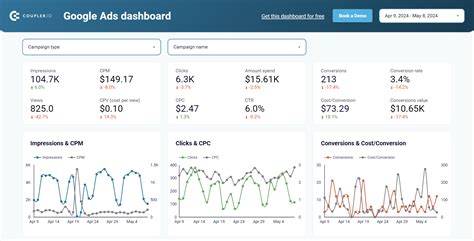
After setting up your account, you’ll see the Google Ads dashboard, which has a clean and simple layout. On the left is a menu where you can access Campaigns, Ad Groups, Ads & Extensions, and Keywords. The center shows an overview of how your account is performing, including clicks, costs, and impressions. Along the top, you’ll find tools and settings for billing, account setup, and reports. Beginners often spend time in the Campaigns tab to create, pause, or edit ads. The dashboard also shows recommendations and alerts to help you spot opportunities or issues. Getting familiar with these sections will make managing your ads easier over time.
How do I create my first campaign after setting up the account?
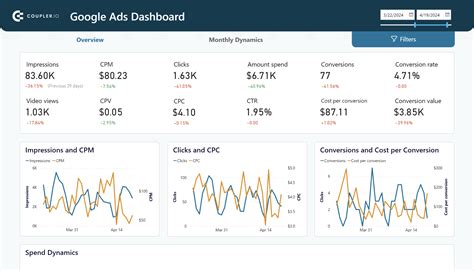
To create your first campaign, go to the Campaigns section and click the “+ New Campaign” button. Start by choosing a campaign goal—website traffic is a common choice for beginners. Next, select the campaign type: Search campaigns display ads in Google search results, while Display campaigns place ads on websites across the internet. Then, set your daily budget and bidding preferences, which control how much you spend and what actions you pay for. After that, define your target audience by location, language, and any relevant demographics. Finally, create your ads by writing headlines and descriptions and adding your website URL. Preview your ads to make sure they look good, then save and launch. Google will review your campaign, usually within a day, before your ads go live.
What should I keep in mind for ongoing account management?
Managing Google Ads is an ongoing process. Keep track of your daily spending to stay within budget. Regularly review key metrics like click-through rate, cost per click, and conversions to see what’s working. Pause or adjust ads that don’t perform well. Update your keywords and ad copy to keep them relevant to your business and customers. Use Google’s recommendations thoughtfully, not blindly. Always keep your billing information current to avoid interruptions. Small, regular adjustments based on data often improve results better than major changes.
Where can I go for help if I get stuck?
If you get stuck, Google offers several support options. The Google Ads Help Center has detailed articles covering many common questions. There’s also a community forum where advertisers share tips and solutions. For direct assistance, you can contact Google Ads support by chat, email, or phone, depending on your location. Additionally, many YouTube tutorials explain Google Ads in clear, simple language. Using these resources can save you time and frustration as you learn.
Conclusion
The best way to start with Google Ads is to set up your account carefully with accurate business and billing information, choose a clear campaign goal, and launch a simple campaign focused on what matters most to your business. Don’t worry about getting everything perfect right away—learning happens as you go. Success means getting steady clicks and visits that fit your budget and goals. The dashboard and linked tools provide data to help you improve over time. Start small, check your account regularly, and use Google’s support when you need it. That’s how you turn Google Ads into a dependable tool for attracting customers online.
Frequently Asked Questions
Do I need a Google account to create a Google Ads account?
Yes, you need a Google account to sign in and create a Google Ads account. If you don’t have one, you’ll need to create a free Google account first.
Can I create a Google Ads account without a website?
You can create an account without a website, but many campaign goals require a landing page to send visitors to. If you don’t have a website, you can focus on goals like phone calls or store visits instead.
What payment methods does Google Ads accept?
Google Ads accepts various payment methods depending on your country, such as credit and debit cards, bank transfers, and sometimes other local options. The available methods will appear during setup.
How long does it take for my Google Ads account to be ready?
After setup and entering billing information, your account is usually ready immediately. However, new campaigns often go through a review process that can take up to one business day before ads start running.
Is it possible to change my Google Ads account currency or time zone after setup?
No, you cannot change the currency or time zone settings after creating your account. It’s important to choose these carefully during setup to avoid issues later.